![alcomy_logo_color_black.png]](https://help.alcomy.com/hs-fs/hubfs/alcomy_logo_color_black.png?height=50&name=alcomy_logo_color_black.png)
🚨 IMPORTANT Make sure to explore each "🚨 IMPORTANT" badge below.
Please call our support line if you need additional help: 385-331-1990
Find the medication that needs to be discontinued by navigating to the resident section, choosing medications and then choosing "D/C" from the top bar.
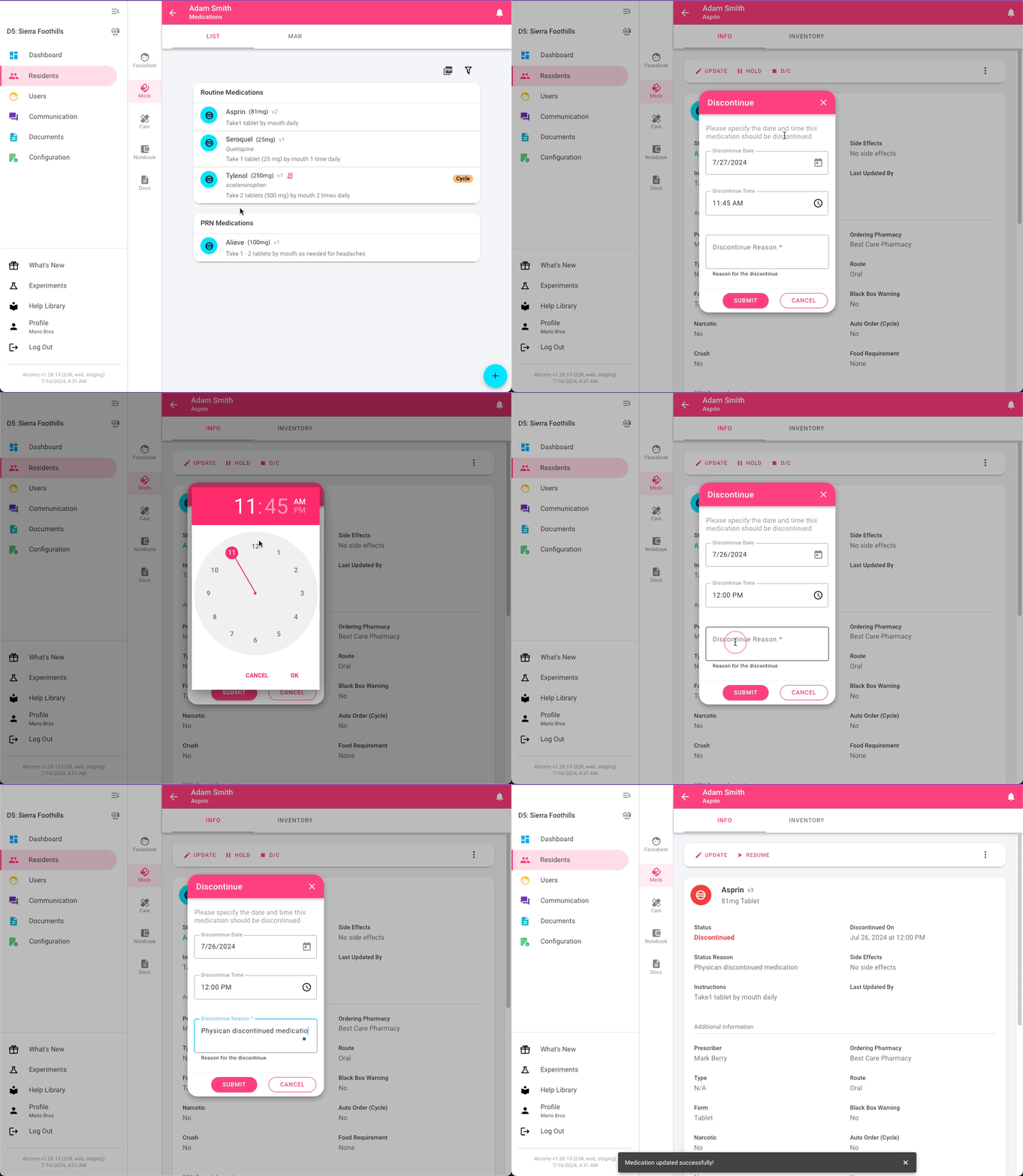
💡TIP A warning message may appear asking you to confirm. If you do not see the "CONFIRM" prompt make sure to scroll down. (Motion Image Below)
⚠️ WARNING If you see this warning message make sure to proceed to see why this is prompting you and what will happen if you continue to move forward. 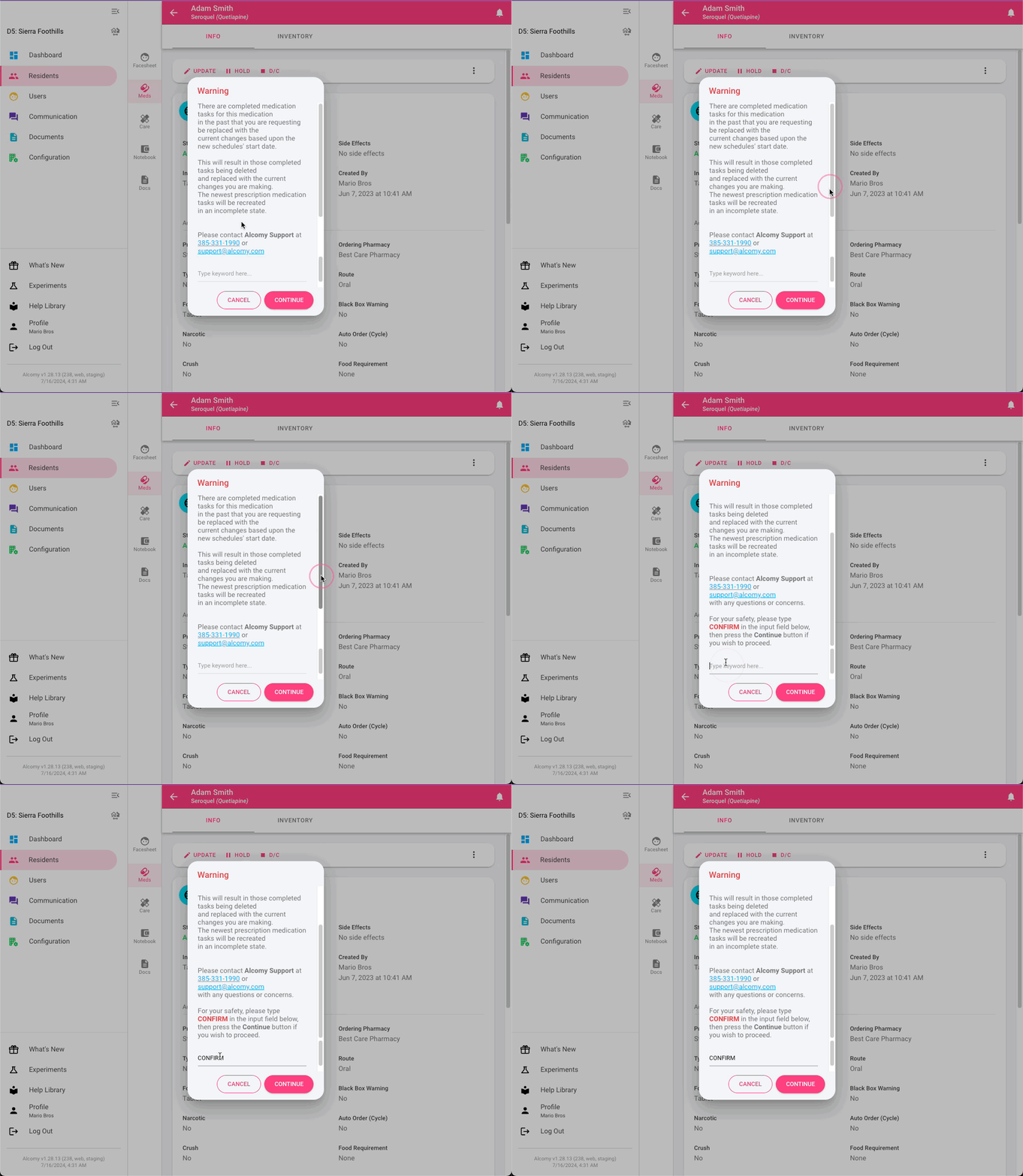
🚨 IMPORTANT If you get the following message, pay attention to what it is saying. Below are two parts of the message that are highlighted.
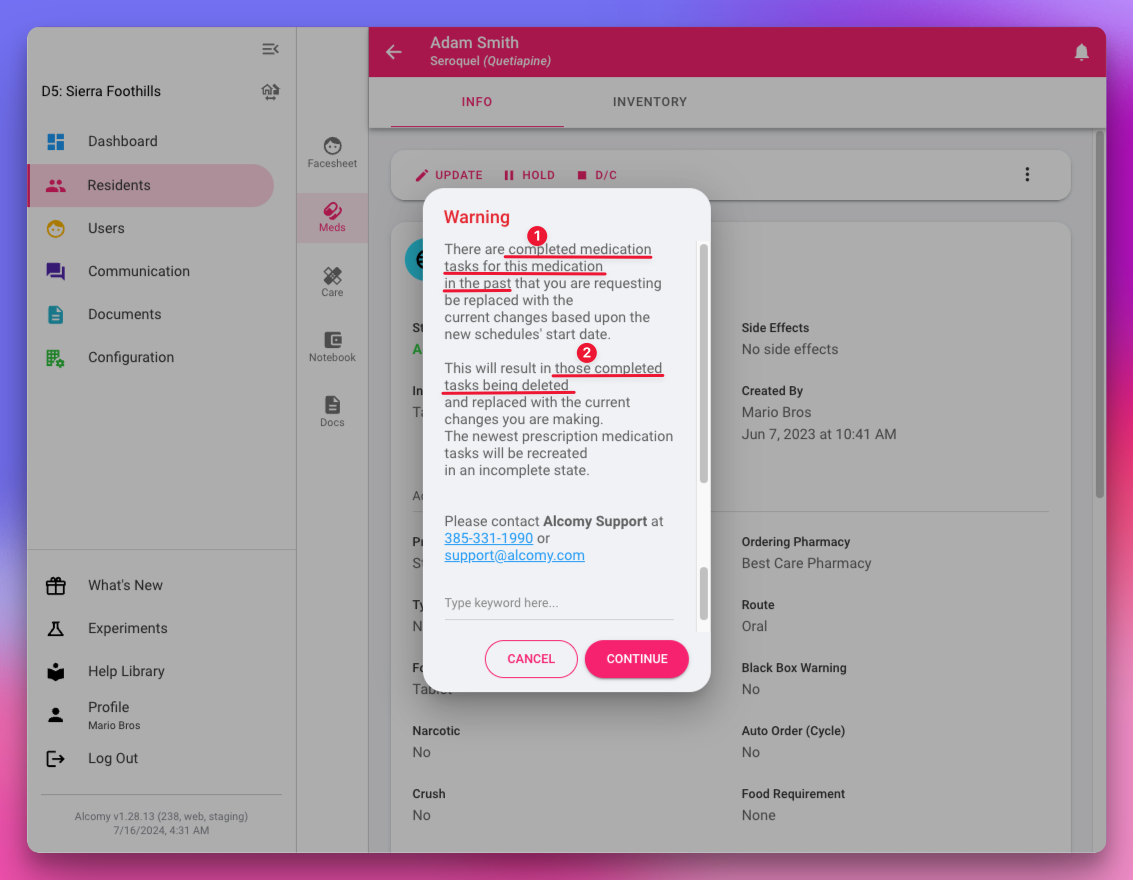
🚨 #1 "There are completed medication tasks for this medication in the past".
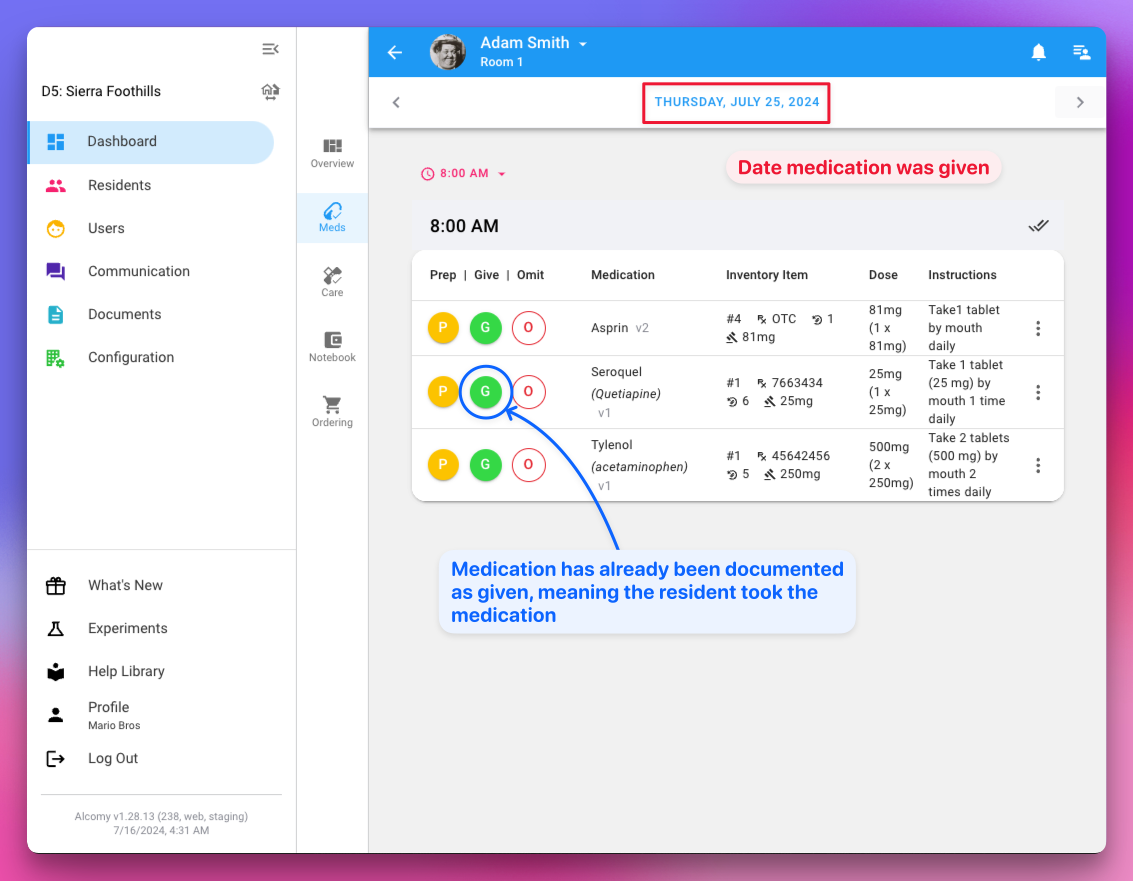
🤷 WHY? This means that someone has been signed off on the medications after the discontinue date that is being set. In this example the medication is being discontinued on 7/23/2024 and todays date is is 7/27/2024. (See the next image below) 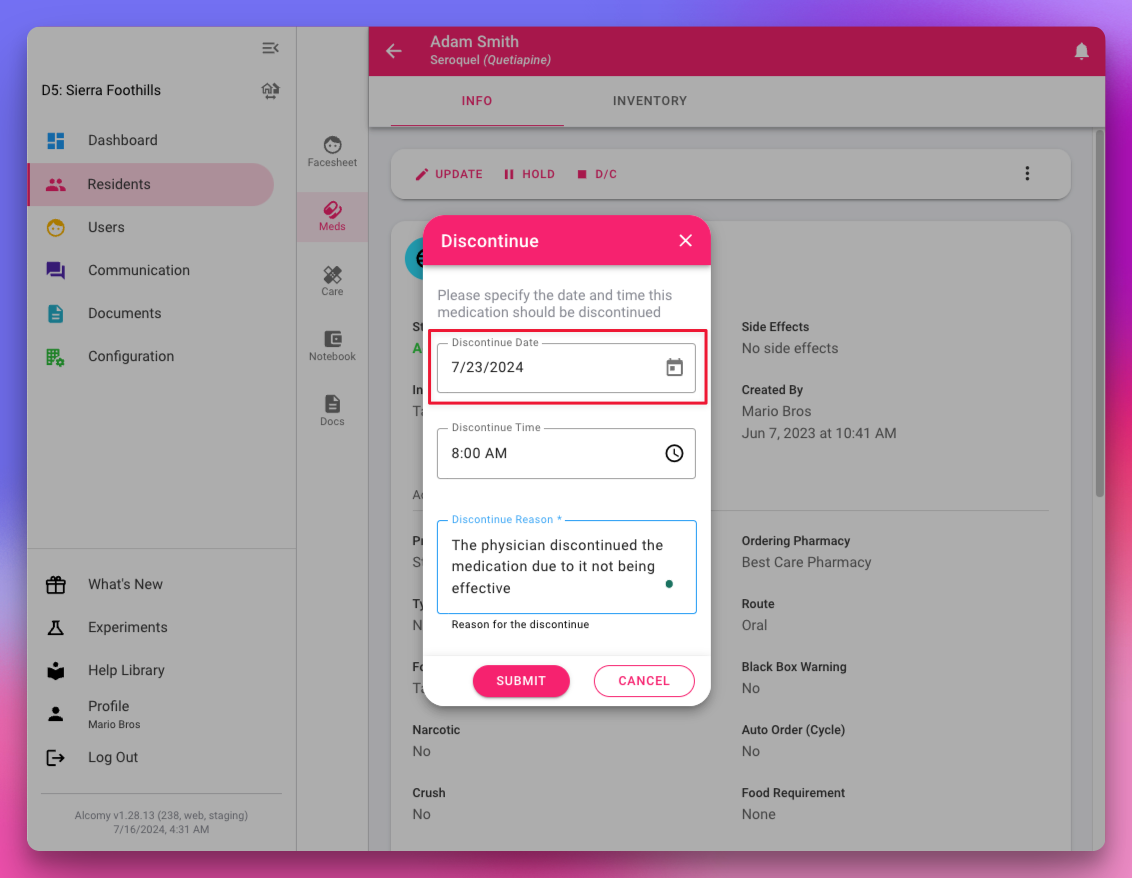
This image shows that on 7/25/2024 the medication was marked as given indicating that the resident received the medication.
🚨 #2 "This will result in those completed tasks being deleted"
🤷 WHY? Because the physician discontinued the medication on July 23, 2024 there should be no signatures indicating the resident received the medication after that date. For this reason Alcomy will delete any tasks that are in the system after July 23, 2024
⛔️ WARNING If your staff was in fact giving this medication after prescribed time, contact the residents prescribing physician and follow your state regulations.