![alcomy_logo_color_black.png]](https://help.alcomy.com/hs-fs/hubfs/alcomy_logo_color_black.png?height=50&name=alcomy_logo_color_black.png)
💡 TIP 1 When users or staff no longer work or need access to resident's information. You can deactivate them by taking the following steps.
💡 TIP 2 You can easily reactivate this individual if they come back to being associated with your business.
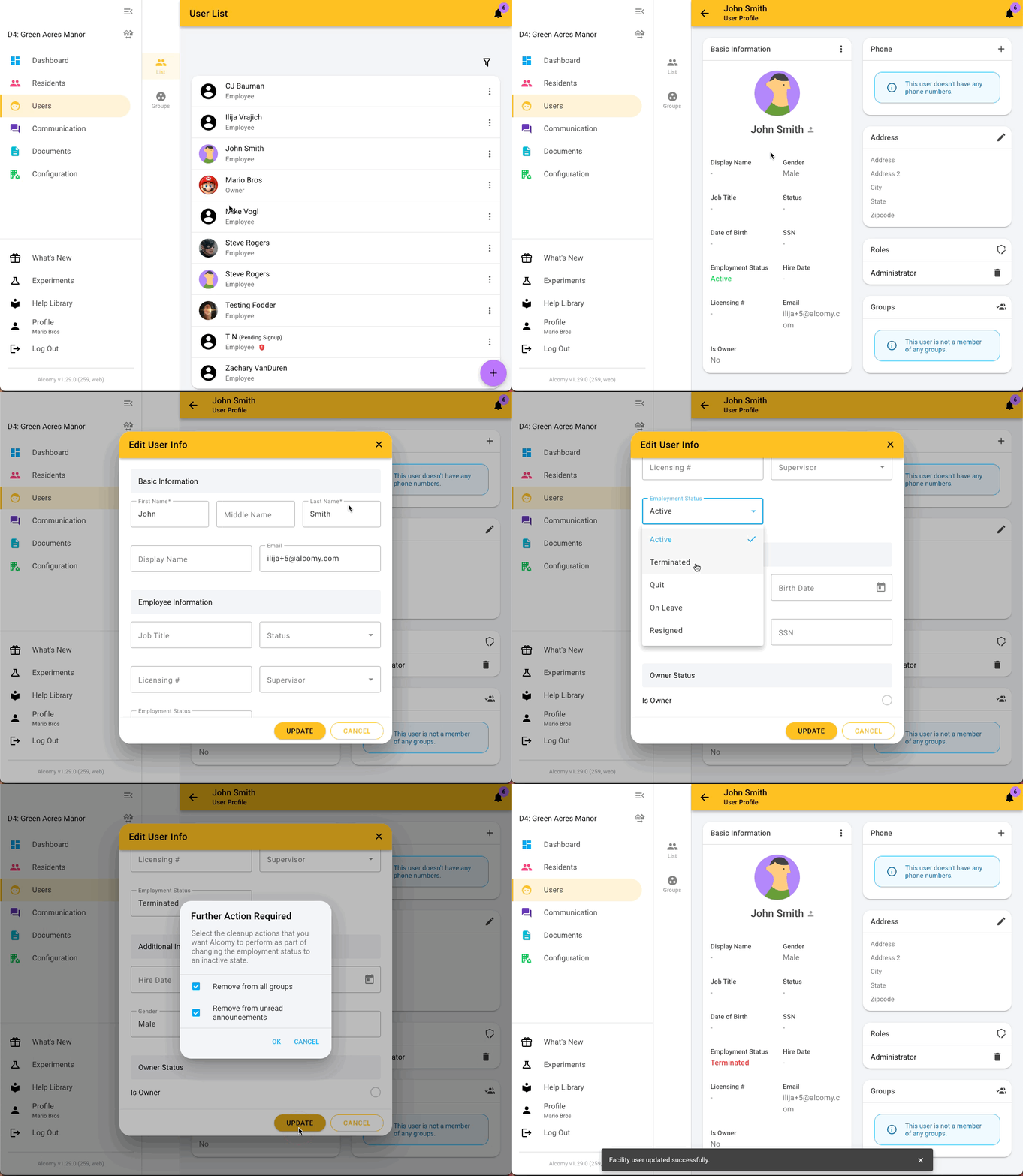
To deactivate a user in Alcomy, you'll navigate to the 'Users' menu item and select the user you need to deactivate.
Then, click the three dots by 'Basic Information' to edit their Basic Information and scroll to 'Employment Status' and change it from 'Active' to the option that fits best. (Options are Terminated, Quit, On Leave, or Resigned)
🎉 Success! That user can no longer log in to this facility on Alcomy. If you have multiple facilities and need to remove their access to all facilities, you'll need to do this for each facility the user has access to.