![alcomy_logo_color_black.png]](https://help.alcomy.com/hs-fs/hubfs/alcomy_logo_color_black.png?height=50&name=alcomy_logo_color_black.png)
🎓 EDUCATION - HIPAA requires that each individual who will be documenting or viewing things within Alcomy will need to have their own unique email address to log in. It is also good practice because this is the way in which everyone can know who did what within the app.
Step 1: Add User to the Location (Facility/Home)
Go to the menu item labeled 'Users' and click the + button in the bottom right. A form will appear where you can add the users' information.
💡 TIP You only need to add the email, first name, last name, and their role (at the very bottom). Everything else on this form is optional.
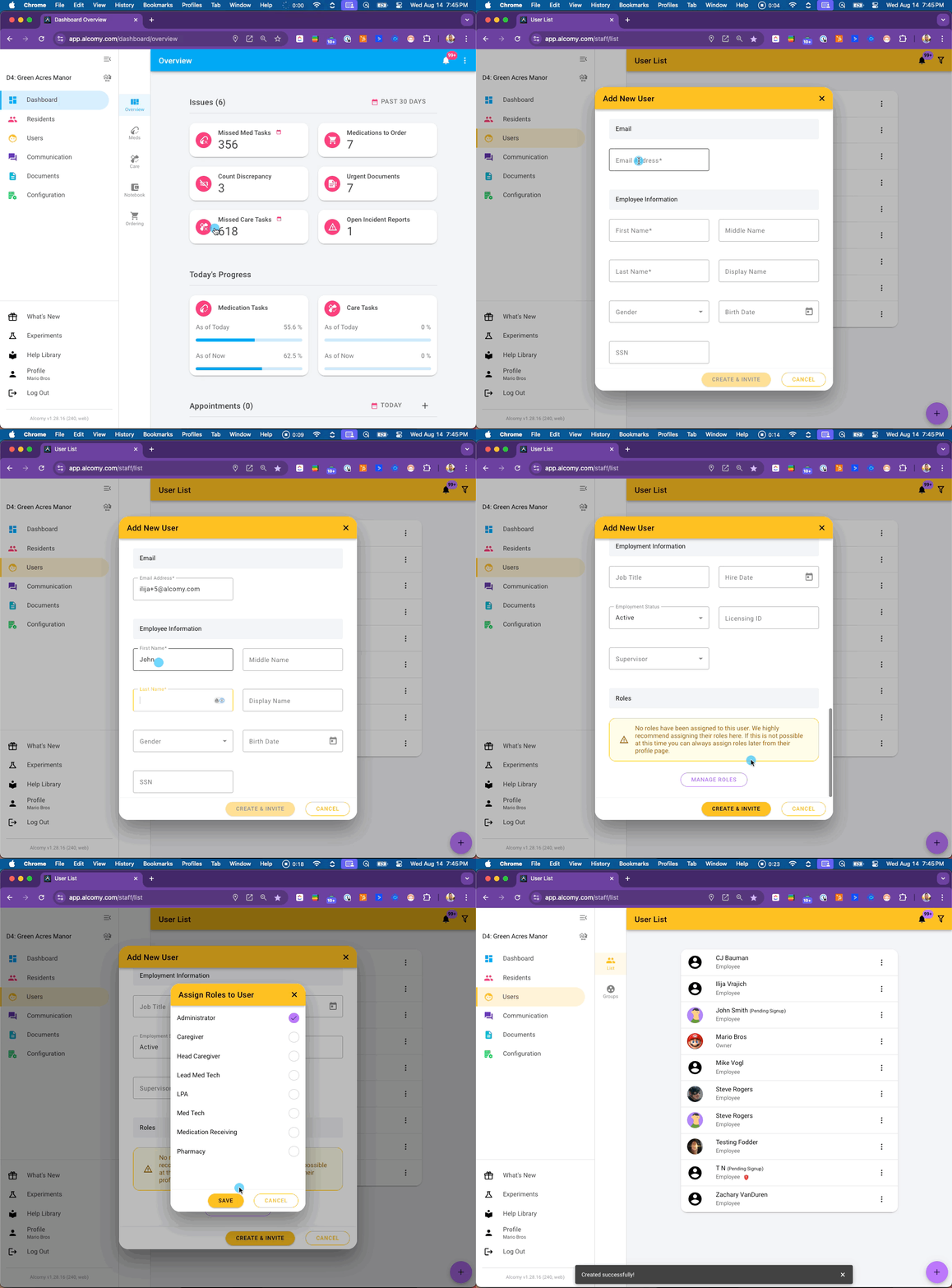
Step 2: Setup Alcomy Account
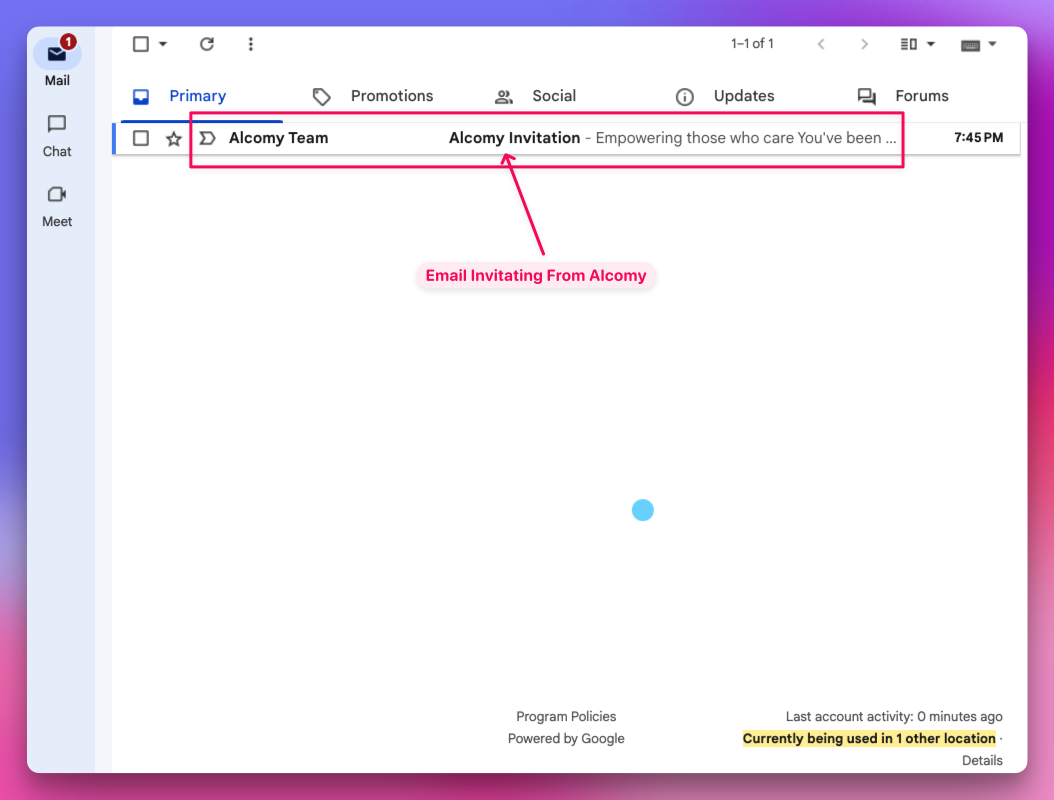
💡 TIP Depending on the email account, eg: @yahoo, @gmail, @hotmail, etc., the user may need to check their spam folder. In Gmail, they may need to check the "other inboxes" such as "updates", "promotions", "social", or "forums". This will depend on how they have their email set up. They can also simply search for "Alcomy Invitation" which should show the email or search "Alcomy Team"
Open the Email from Alcomy Team:
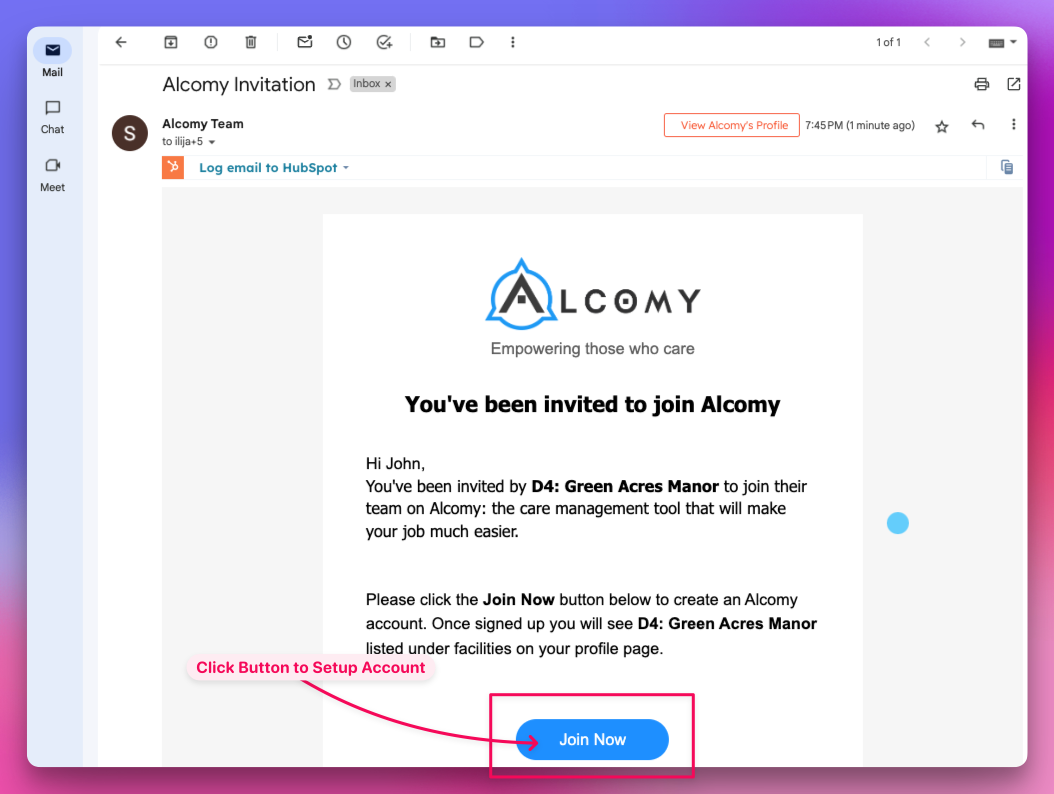
Click the Join Now Button:
You will be directed to the Create Account page where you will enter the password to your Alcomy Account:
💡 TIP Alcomy requires a strong password due to the nature of the information that we are dealing with. You will be required to enter a minimum of 8 characters which must consist of at least 1 uppercase, 1 lowercase, and 1 number. The indicator (#2 in the image below) will let you know if you've complied with the request 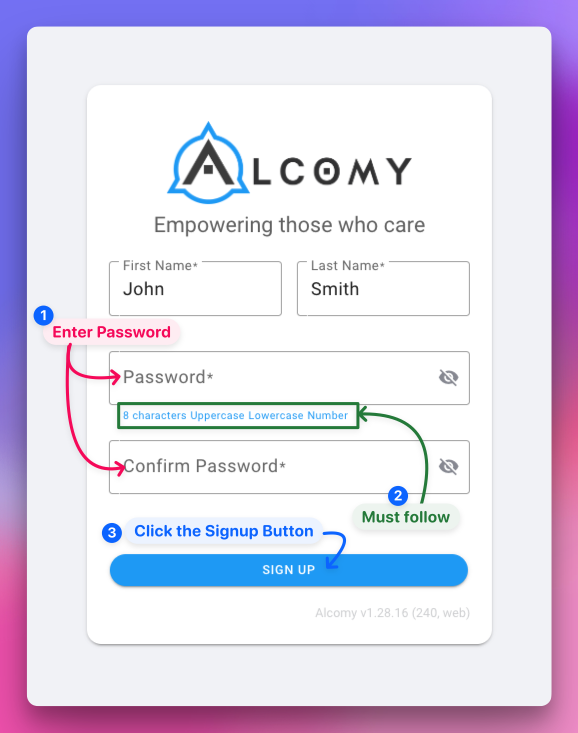
The user is then logged into Alcomy.
💡TIP By default the user is logged into the web browser version of Alcomy. This occurs regardless of what type of device they may be logging in on Phone, Tablet, or Computer. Proceed to the final step (Step 3) to download the app from either the Apple or Andriod App Stores if you wish to be able to access the native mobile app for either Apple or Android.
Step 3: Install App
Click the following buttons to go directly to the App Store of your device.
💡 TIP It's best to do this on your mobile device. After downloading the App. Log in using the email and password you did in the steps above.